With the Central Management module the setup of the Authorization Box for multiple databases can be maintained from one single database.
The database from which the provisioning is executed is called the "Parent" and this database can be linked to one or more other databases called the “Children”.
From a Child database, the setup can no longer be maintained; The setup is managed directly through the Parent database only.
Main advantage is that a change in the setup, like the creation of a new Organization Role or the modification of a Procuration Template, only needs to be performed within the Parent database once.
The change in the Parent is then immediately available in the Child databases.
The following can be maintained through the Parent database :
- Organization structure
- Organization roles
- Permissionset groups
- Master templates
- Authorization templates
- Pre- and post actions
- Approval templates
- Free fields
- Company groups
- Approval settings
- Approvers
- Approval groups
¶ Assigning and linking databases
The assigning of a database to become a Parent, can be set in the general setup of that database. (Setup=>General→fasttab “Databases”) and can only be changed by the Application Manager.
When opening that database connection, check the box “Parent Connection".

Any database connection can be linked as a Child as long as they fulfill the following conditions :
- Does not contain an Organizational structure.
- Is not a Parent connection.
To link a Child connection to the Parent, go to the Central Management (Authorization Framework=>Central Management) in the Parent connection.
In Central Management add the Child(ren) to that Parent connection by clicking on the icon ‘Can become a child’.

¶ Assigning organization charts
When a particular Organization chart is to be assigned to Child databases, click on the ‘pencil’ icon on the right side of the Organization chart name in the Parent connection.

In the next screen choose if that Organization chart would have to apply to “All children” (default), or click on the button ‘Edit’, to “Specific children”.
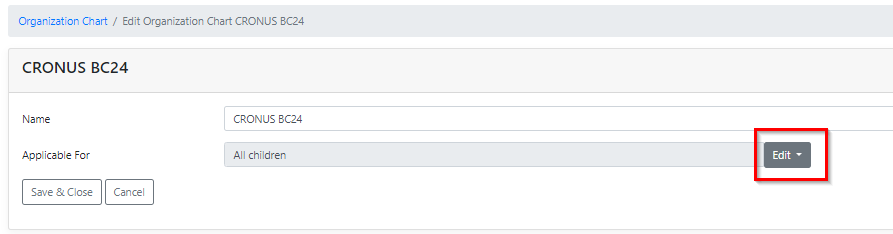
When “Specific children” has been selected, choose which Children will have to be able to see that Organization chart and therefore also all other linked fields. (see list of fields above)
The box on the left hand side shows which children will be available.
Click on a Child that has to be assign to that Organization chart. Holding down Ctrl will allow selecting multiple Children.
Click on the arrow(s) pointing to the right in the blue bar of the box on the left hand side, which will place the Child(ren) to the box on the right hand side.
The ones in the box on the right hand side will be assigned that Organization chart.
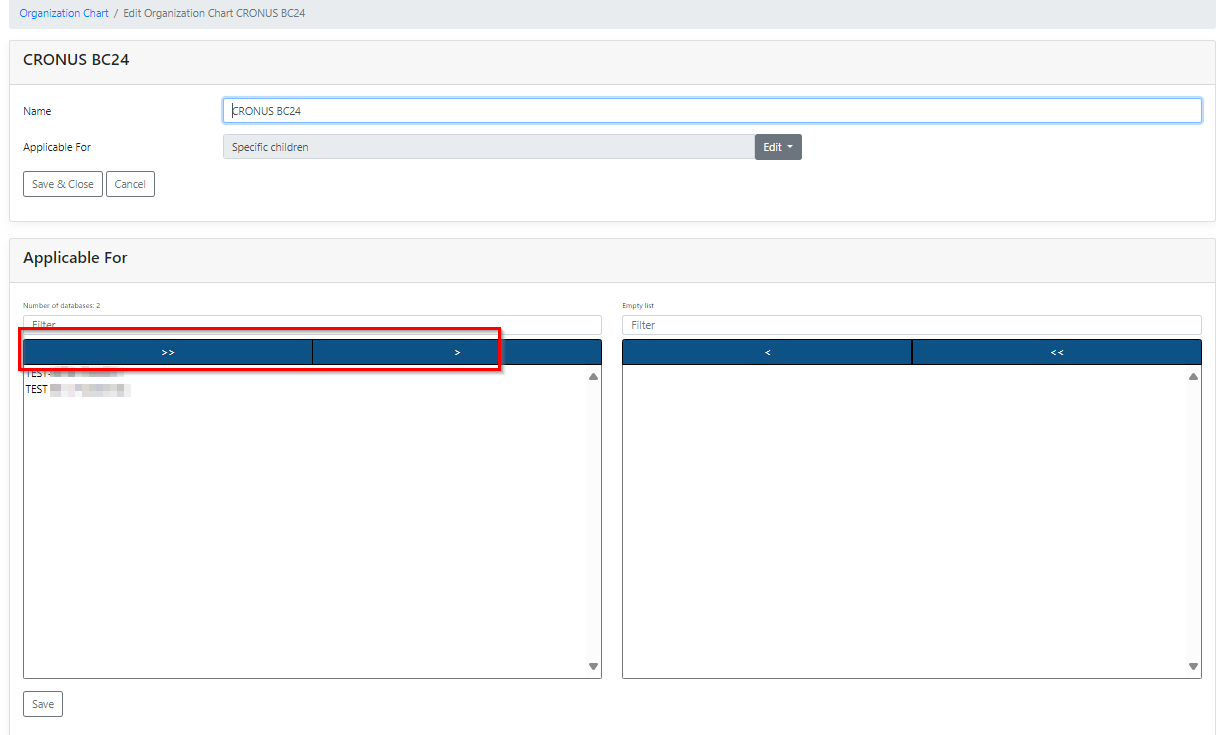
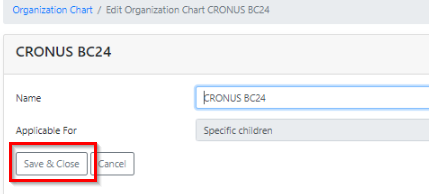
Click on ‘Save’ in the bottom left corner and then ‘Save & Close’ below the Organization chart name.
Snippet of a department with roles in the Parent database : 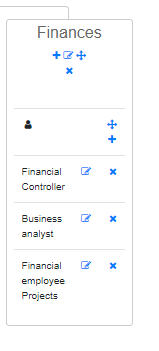 |
Snippet of this same department in the Child database (note there is only the option to view):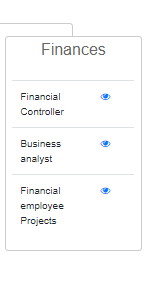 |
|---|
Last reviewed: October 2026.